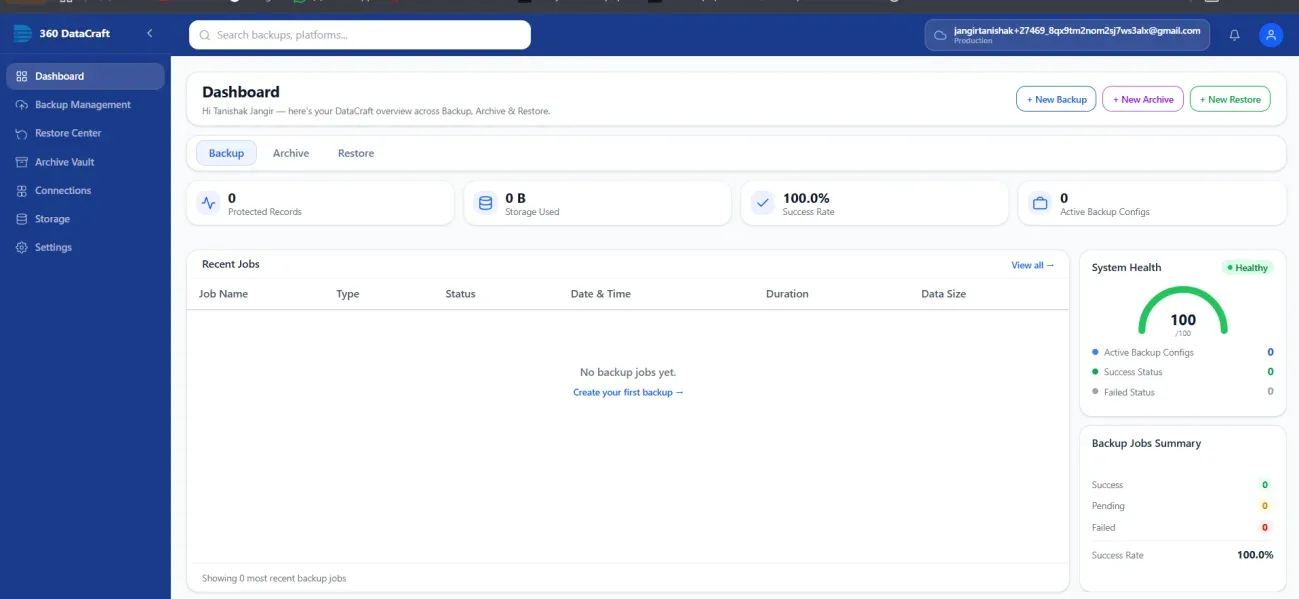
This guide explains how to install, configure, and provide users with access to 360 Data Craft in a Salesforce organization.
360 Data Craft uses Salesforce Permission Sets to control which users can access and work with the application. During the initial configuration, an administrator selects a custom Permission Set from the Salesforce organization and then assigns the required 360 Data Craft permissions to users.
Follow the steps below to complete the configuration.
1. Install the 360 Data Craft Package
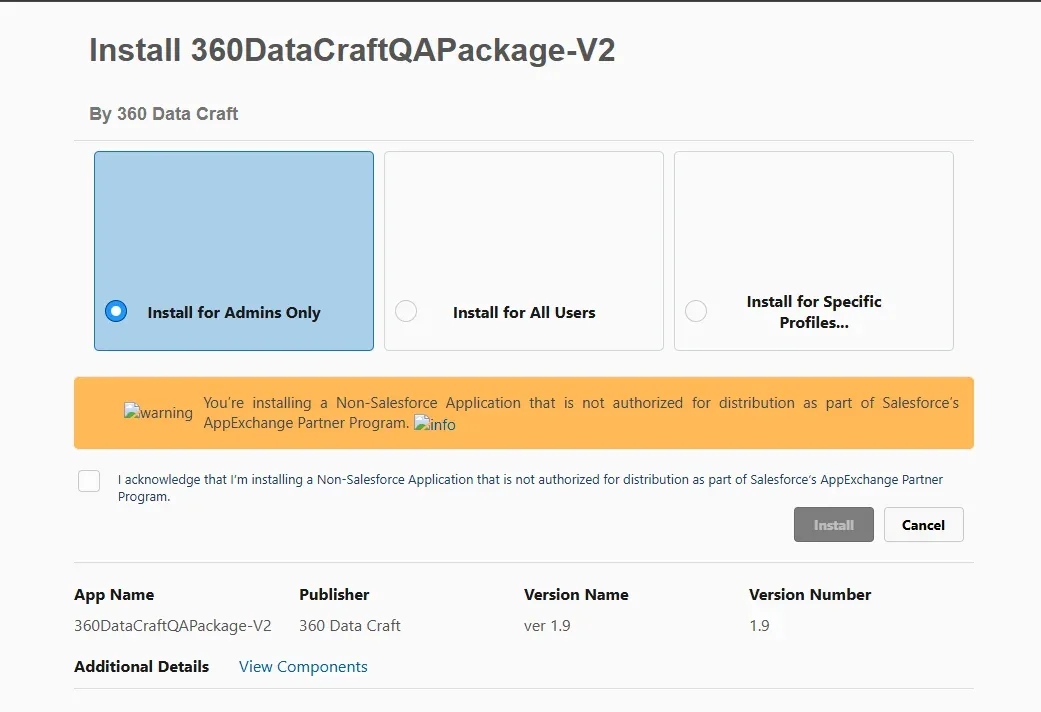
Install the 360 Data Craft Salesforce package using the installation link provided by the 360 Data Craft team.
During installation:
Once the installation is complete, the 360 Data Craft components, including the application, tabs, Permission Sets, and required configuration components, will be available in your Salesforce organization.
2. Assign the 360 Data Craft Admin Permission Set
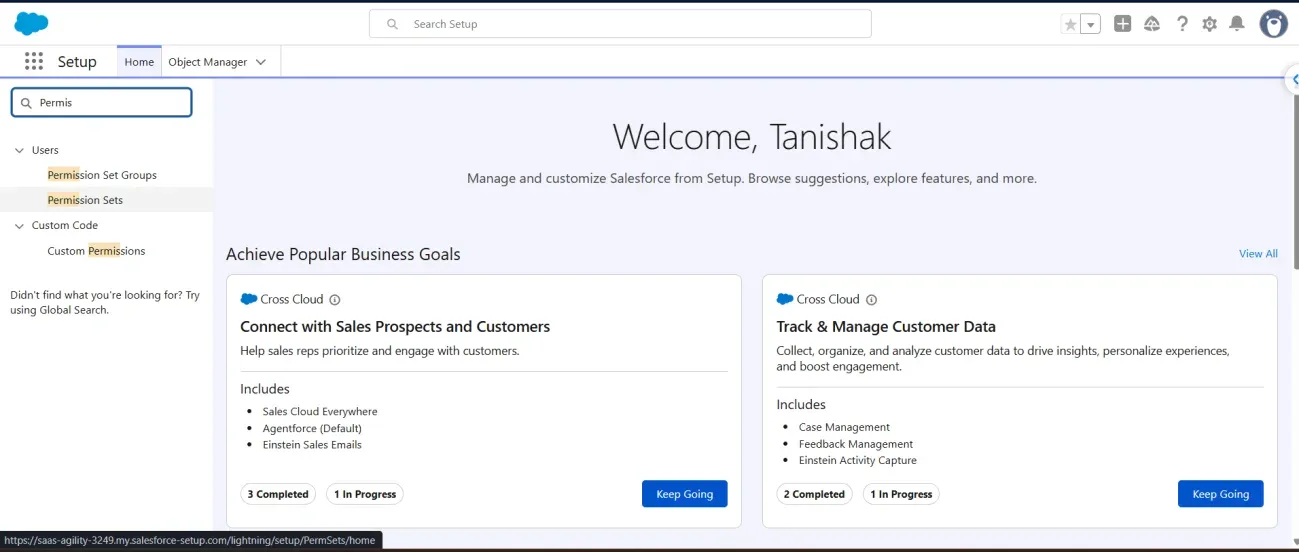
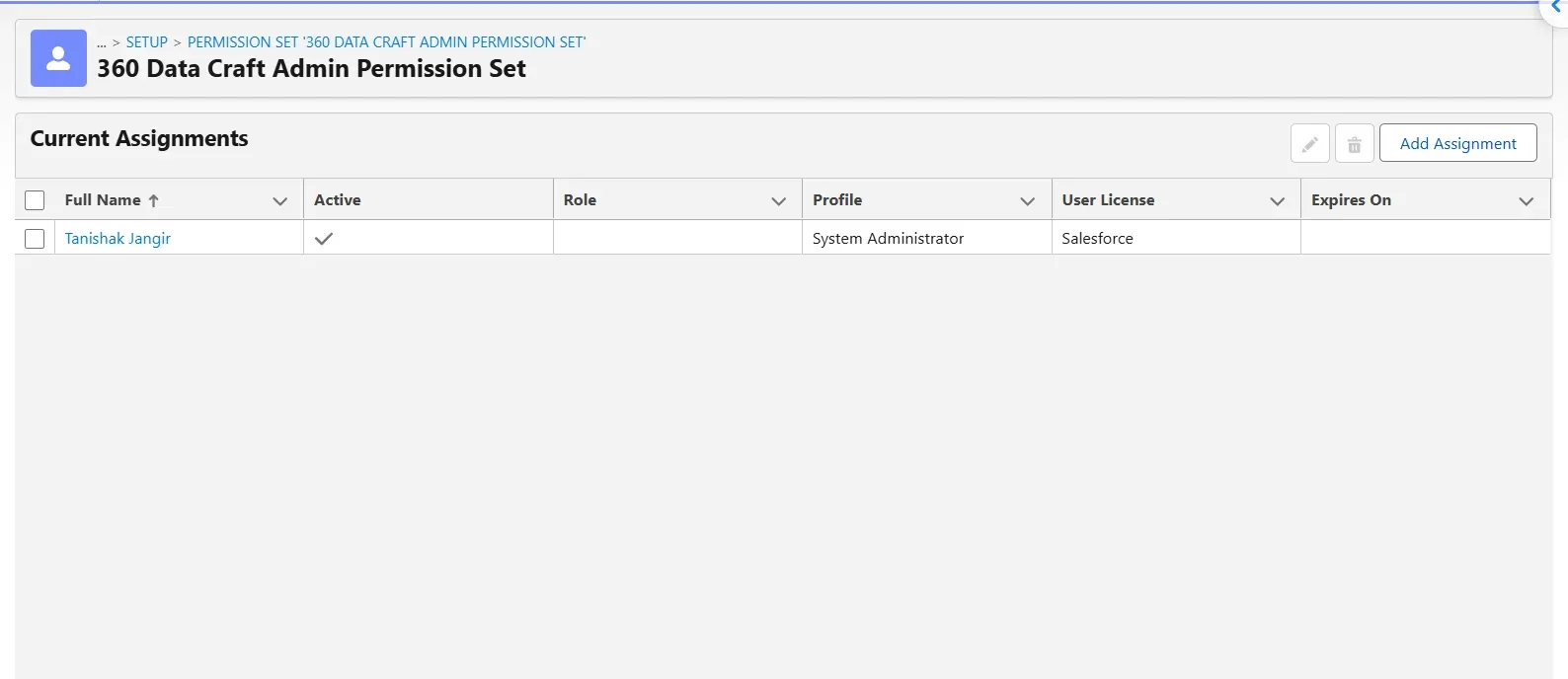
After the package has been installed, assign the 360 Data Craft Admin Permission Set to yourself.
To assign the Permission Set:
Why is this required?
The 360 Data Craft Admin Permission Set provides the administrator with the permissions required to perform the initial configuration of the application.
The user performing the configuration should have this Permission Set before proceeding to the next steps.

3. Open the 360 Data Craft App
After assigning the Admin Permission Set:
The application provides the interface required to configure 360 Data Craft and manage the users who will have access to the product.
4. Select a Custom Permission Set
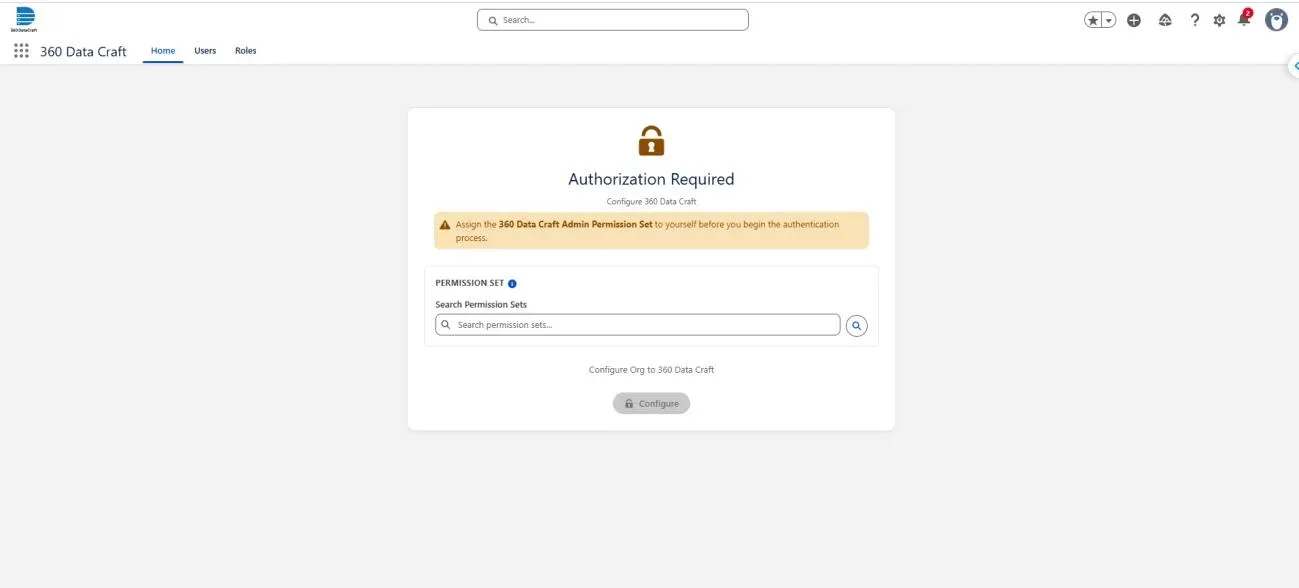
Within the 360 Data Craft application, you will be asked to select a Permission Set from your Salesforce organization.
Select a custom Permission Set that should be used for 360 Data Craft users.
Do not select a Salesforce-managed or standard Permission Set for this configuration.
If you do not have a Custom Permission Set
If your organization does not already have a suitable custom Permission Set:
360 Data Craft User
Why does 360 Data Craft require a custom Permission Set?
The custom Permission Set acts as the organization's selected access-control layer for 360 Data Craft users. It allows the organization to control which users should receive access without modifying Salesforce profiles.
5. Configure 360 Data Craft
After selecting the appropriate custom Permission Set, click the Configure button.
The configuration process connects your Salesforce organization with the 360 Data Craft backend and prepares the organization for using the 360 Data Craft services.
Follow the on-screen instructions provided during the configuration process.
6. Log In to Salesforce
During the configuration process, you will be prompted to log in to Salesforce.
Enter your Salesforce credentials and complete the Salesforce authentication flow.
Depending on your Salesforce organization's security configuration, you may also be required to complete:
- Multi-Factor Authentication (MFA)
- SSO authentication
- Connected App authorization
- Other organization-specific authentication steps
After successful authentication, 360 Data Craft will be able to identify and associate the Salesforce organization with the configuration.
7. Assign 360 Data Craft Permissions to Users
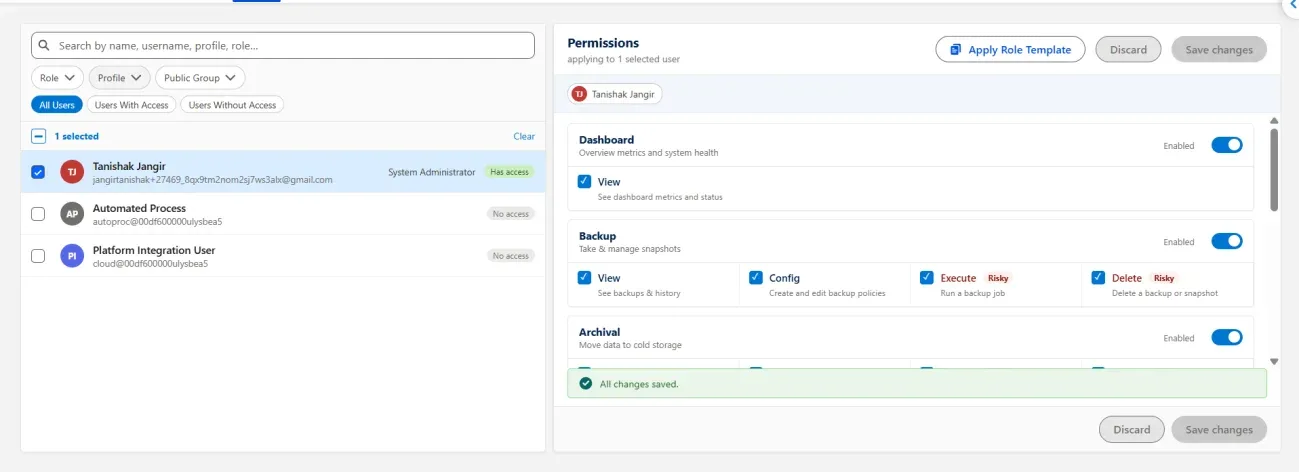
After successfully completing the configuration, navigate to the Users tab inside 360 Data Craft.
The Users section allows the administrator to provide 360 Data Craft access to the Salesforce users who need to work with the application.
To provide access:
8. Access the 360 Data Craft Portal
Once the required permissions have been assigned, users can log in to the 360 Data Craft Portal.
Use the Salesforce organization and user account that were configured during the setup process.
After successful authentication, the user can access the processes and functionality available to their organization.
The available functionality may depend on the permissions assigned to the user and the features enabled for the organization.